
WordPress powers over 40% of all websites, making it the single biggest target for automated attacks. This guide covers strong WordPress password ideas, admin security best practices, and how to generate passwords that actually protect your site.
WordPress is the most popular content management system on the planet, powering over 40% of all websites. That popularity makes it the number one target for automated attacks. Hackers do not need to know anything about your specific site — they use bots that scan the entire internet for WordPress installations and then try to break in.
Here is what the attack landscape looks like:
wp-login.php page every day. If your password is weak or common, it is only a matter of time before they get in.The good news is that a strong, unique password combined with a few basic security steps stops the vast majority of these attacks cold.
WordPress itself is relatively permissive when it comes to password requirements. Here is what WordPress allows versus what security experts recommend:
| Criteria | WordPress Allows | Recommended |
|---|---|---|
| Minimum length | 1 character (no enforced minimum) | 16+ characters |
| Character types | Any characters accepted | Uppercase, lowercase, numbers, and symbols |
| Password strength indicator | Built-in strength meter shown | Only accept "Strong" rating |
| Weak password override | Users can confirm a weak password | Disable the "Confirm use of weak password" checkbox |
| Built-in generator | Yes, on user profile page | Use it, or use a dedicated generator for more control |
The key takeaway: WordPress will let you set a terrible password if you check the weak password confirmation box. Do not rely on WordPress defaults to protect you — take control and set a genuinely strong password.
Below are examples of strong WordPress passwords in different styles. Do not use these exact passwords — they are published on the internet and therefore compromised. Use them as inspiration or generate your own.
| Style | Password Example | Length | Strength |
|---|---|---|---|
| Random characters | Kx9#mTw4@Rv7!pL3 | 16 | Very Strong |
| Random characters (long) | Bz5$nHf8&Wq2!Jy6@Nc3 | 20 | Very Strong |
| Passphrase | Glacier$Telescope42!Marble | 26 | Very Strong |
| Passphrase | Crimson&Octopus77!Horizon | 26 | Very Strong |
| Mixed method | 7Prism!kV3@Tundra$9wQ | 20 | Very Strong |
| Mixed method | Flux#82Neon&Cascade!5 | 20 | Very Strong |
These are examples only. Never use a password you have seen published online. Generate a unique password here.
Passphrase passwords are particularly good for WordPress because there is no maximum length limit. A passphrase like Glacier$Telescope42!Marble is both strong and easier to type when you need to log in manually. For more ideas, see our guide on how to suggest a strong password.
A strong password is the foundation, but it works best as part of a broader security approach. Follow this checklist to lock down your WordPress admin area:
If your admin account is still called "admin", change it immediately. This is the first username attackers try. Create a new administrator account with a unique username, log in with the new account, then delete the original "admin" user and reassign its content.
Your WordPress admin password should be at least 16 characters, use all character types, and never be reused on any other site. Use our Random Password Generator to create one that meets these standards.
Two-factor authentication adds a time-based code from an authenticator app as a second login step. Even if an attacker gets your password, they cannot log in without the second factor. Plugins like Wordfence, WP 2FA, or Google Authenticator make this straightforward to set up.
By default, WordPress allows unlimited login attempts. Install a plugin like Limit Login Attempts Reloaded or use the login protection built into Wordfence to block IP addresses after a set number of failed attempts. This stops brute force attacks in their tracks.
The default /wp-admin and /wp-login.php URLs are well-known to every bot on the internet. Plugins like WPS Hide Login let you change the login URL to something custom, which eliminates most automated attacks before they even reach your login form.
Not everyone needs administrator access. Use WordPress's built-in roles — Subscriber, Contributor, Author, Editor — and only grant admin access to users who genuinely need it. Fewer admin accounts means fewer targets.
A password manager stores your WordPress admin credentials securely and auto-fills them when you log in. NordPass works across all your devices and browsers, so you never have to type a 20-character password from memory.
Get NordPass with 50% discount →Some links on this page are affiliate links. We may earn a commission if you make a purchase, at no extra cost to you.
Humans are notoriously bad at creating random passwords. We fall into patterns — favourite words, predictable number sequences, keyboard walks. The solution is to let a tool do it for you.
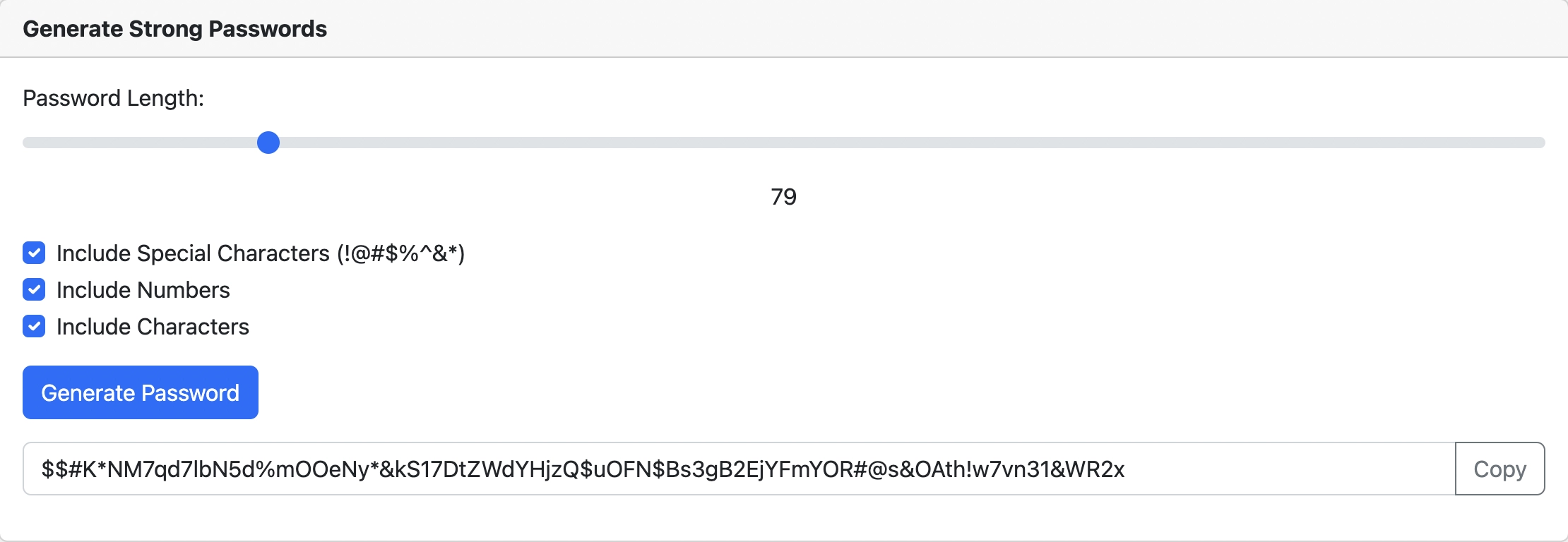
TaskMate's Random Password Generator creates truly random passwords that you can customise by length and character type. Here is how to use it for WordPress:
You can also test any existing password with our password strength checker to see how it holds up against modern cracking methods.
If you manage more than one WordPress site — as many developers, freelancers, and agencies do — strong passwords become a logistical challenge. Each site needs a unique admin password, each hosting account has its own credentials, and database passwords, FTP credentials, and API keys all add up fast.
This is where a dedicated password manager becomes essential rather than optional. Here is what managing multiple WordPress sites looks like without one versus with one:
| Scenario | Without a Password Manager | With NordPass |
|---|---|---|
| 5 client WordPress sites | Reused passwords or a spreadsheet | Unique passwords, auto-filled per site |
| Hosting + database credentials | Saved in browser or sticky notes | Encrypted vault, accessible anywhere |
| Team access for developers | Passwords shared via email or chat | Secure sharing with access controls |
| Client handoff | Awkward password exchange | Transfer credentials securely |
NordPass uses XChaCha20 encryption to protect your credentials and offers features specifically useful for WordPress professionals: secure password sharing, a built-in password generator, breach monitoring to alert you if credentials appear in a data leak, and cross-device sync so you can log into client sites from any machine.
Agencies and freelancers juggle dozens of WordPress logins, hosting accounts, and database passwords. NordPass stores them all in an encrypted vault with secure sharing and breach monitoring built in.
Get NordPass with 50% discount →Some links on this page are affiliate links. We may earn a commission if you make a purchase, at no extra cost to you.
Strong passwords and admin hardening are the most important steps, but a truly secure WordPress site requires a few more layers:
A dedicated security plugin provides firewall protection, malware scanning, and real-time threat detection. Wordfence and Sucuri are the two most established options. Both offer free tiers that cover the essentials including brute force protection, file integrity monitoring, and login security.
Outdated software is the second most common way WordPress sites get hacked (after weak passwords). Enable automatic updates for minor WordPress releases and check for plugin and theme updates weekly. Remove any plugins or themes you are not actively using — even deactivated plugins can contain exploitable vulnerabilities.
An SSL certificate encrypts the connection between your browser and your server. Without HTTPS, your WordPress password is sent in plain text every time you log in. Most hosting providers offer free SSL certificates through Let's Encrypt. There is no reason not to use one.
Even with perfect security, things can go wrong. Automated backups ensure you can restore your site if it is compromised or if an update breaks something. Plugins like UpdraftPlus or BlogVault handle this automatically and store backups off-site.
XML-RPC (xmlrpc.php) is a WordPress feature that allows remote connections. It is also a common target for brute force amplification attacks. If you do not use the WordPress mobile app, Jetpack, or other tools that rely on XML-RPC, disable it with a security plugin or a simple .htaccess rule.
For more on building a secure online presence, read our guide on whether you should use a password manager.
Glacier$Telescope42!Marble are both strong and memorable. For the best results, use a password generator to create a truly random password.
wp-login.php or wp-admin). They typically start with common usernames like "admin" and use lists of leaked passwords from other breaches. Without login attempt limits or two-factor authentication, a weak password can be cracked in minutes.
Need help generating a strong password right now? Use our Random Password Generator, check your existing password with our Password Strength Checker, or read more in our guide on strong password suggestions for every platform.